
How to make a Shopify product video from the photos you already have
You can make a Shopify product video without a camera crew. Start with the listing photos you already have, keep the video short and silent-friendly, match its shape to your gallery, and upload it to the product’s Media section as an MP4, MOV or WebM file of up to 10 minutes and 1 GB. The video can only show what your photos show, so the photos you choose matter more than the tool.
Can you make a product video from photos alone?
Yes. There are two ways to do it, and they suit different products.
- Edit the stills. Put your photos on a timeline in any video editor, add slow zooms and pans, and cut between them. Nothing new is shown, so the video can’t misrepresent the product, but it still looks like photos.
- Film new scenes from the photos. AI video tools can show the product being used, worn or handled in a real-looking place. This looks like footage, but watch the result closely: AI can get colour, shape or lettering slightly wrong.
Either way, the photos set the limit. If no photo shows the back of a bag, no honest video can show it either. Before you choose a tool, look at what your listing already covers.
Which product photos make the best video?
The photos you already show shoppers are the right starting point, as long as they cover the product well:
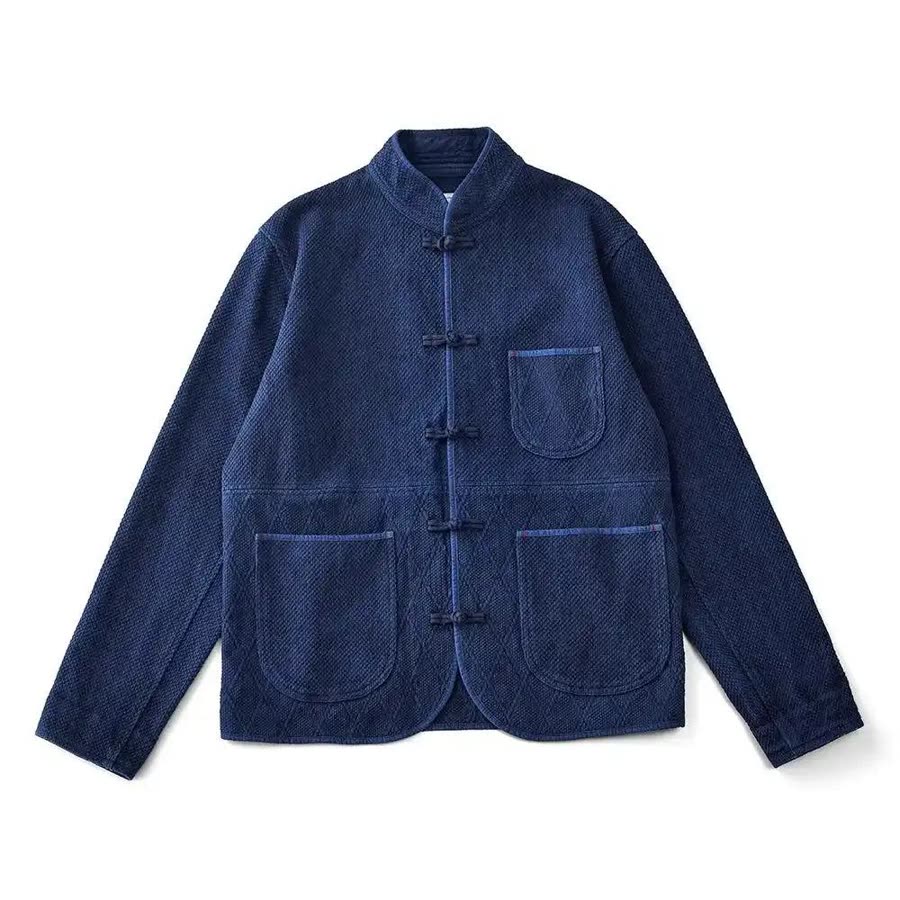
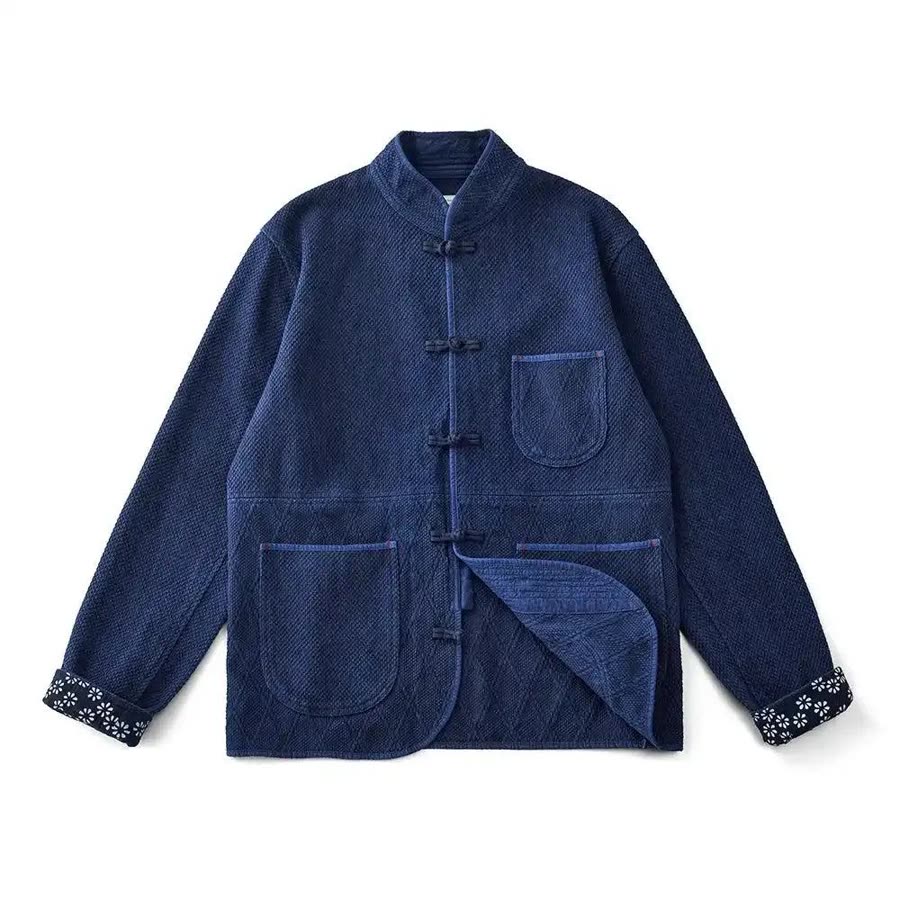
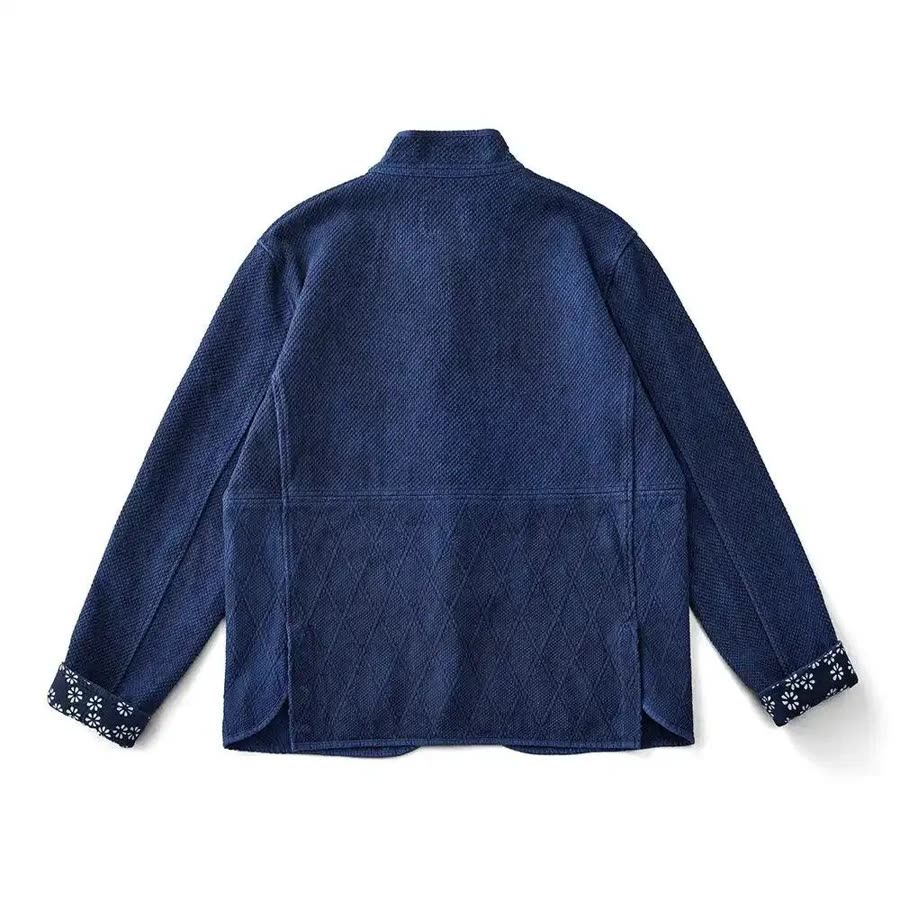
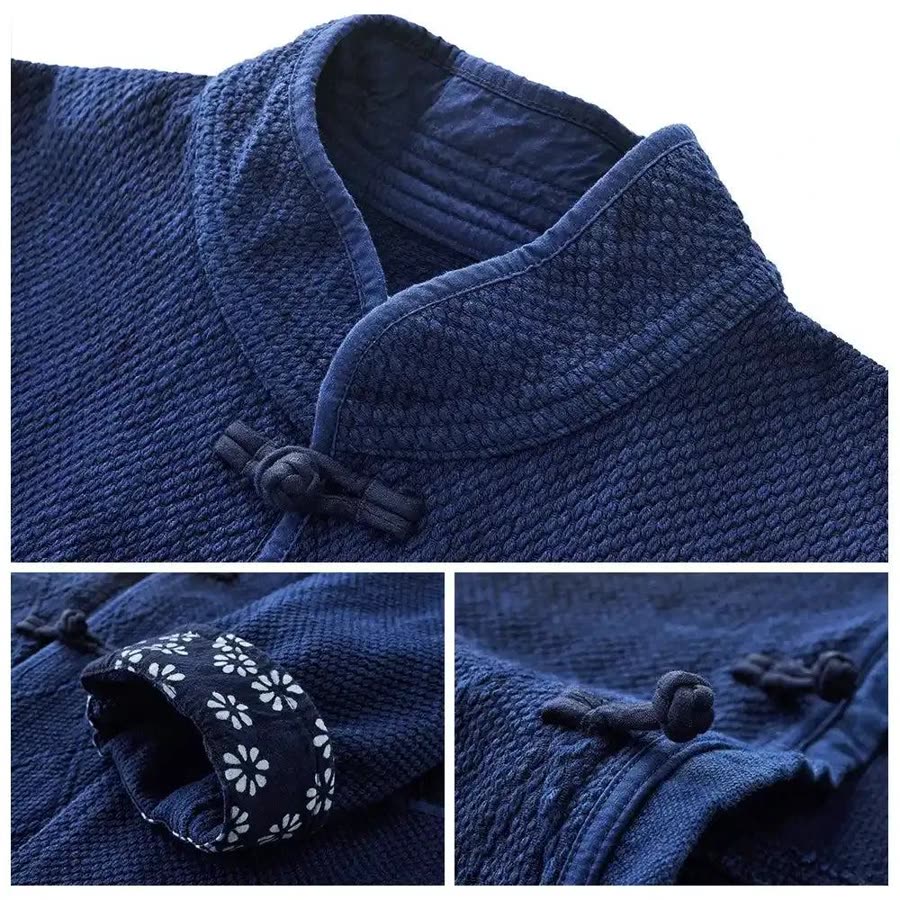
- Several angles. Front, back, side and a close-up of the detail people ask about. Each extra angle is something the video is allowed to show.
- The product in full. Photos where a hand, a prop or the frame edge hides part of it give less to work from.
- Accurate colour. If two photos disagree on colour, the video has to pick one. Use the photos that match the product in daylight.
- Enough resolution. A video crops and moves through a picture, so small photos turn soft quickly. Shopify suggests 2048 × 2048 px for square product images. Clip Mochi tells you when a photo is too small to look sharp, so you can swap it.
For clothing, a photo of the garment worn by a person shows how it hangs, and flat photos of the front and back show the details. Having both helps.
How long should a Shopify product video be?
Shopify accepts product videos of up to 10 minutes, but a video in the product gallery isn’t a film. Shoppers swipe past it between photos, so it has a few seconds to show one useful thing: how a jacket moves, what a case looks like open, how big something is in a hand.
Our own examples run between 5 and 11 seconds. A good rule is one idea per clip and no more than a few clips. If you have more to say, a second video is easier to watch than a longer one.
Plan for no sound. Many people browse with the sound off, so the video should make sense in silence. Clip Mochi’s videos have no audio track at all.
Should a product video be square or vertical?
Match the shape your store already uses for product media. If your photos are square, a square video sits in the gallery like another photo. A video in a different shape can leave bars around it or make the gallery change height as shoppers swipe, depending on your theme.
Vertical 9:16 video suits a person wearing clothing and is the shape social apps use, so it’s worth having a 9:16 version too if you post the same video elsewhere. Clip Mochi makes each video in the shape your store already uses, and clothing videos come in vertical, 4:5 and square sizes.
How do you add a video to a Shopify product?
- In your Shopify admin, go to Products and open the product.
- In the Media section, click Upload new or drag the video file in.
- Drag it to where it belongs in the gallery and save.
Uploaded videos can be .mp4, .mov or .webm files of up to 10 minutes, 1 GB and 4K (4096 × 2160 px). Shopify serves them to shoppers as MP4 or HLS at 480p, 720p or 1080p depending on their connection. You can also add a YouTube or Vimeo link instead of a file. See Shopify’s product media requirements.
A few things to know before you publish:
- Mind the first spot. The first media item is the product’s featured media, used on collection pages, in the cart, at checkout and on your home page. Unless you want the video there, place it after your main photo.
- Variants can’t have videos. Shopify doesn’t allow videos or 3D models as variant media, so a video shows for the whole product.
- Check your theme. All of Shopify’s Online Store 2.0 themes and the Horizon themes display product videos. Whether a video loops depends on the theme: in Dawn, for example, Loop video is a setting on the product page section and is off by default.
- Plans have video limits. Basic stores can hold 250 videos and 3D models in total; Grow allows 1,000 and Advanced 5,000. See Shopify’s limits by plan.
What should you check before a product video goes live?
Watch it through at full size, then on your phone, and look for:
- The product itself. Same shape, colour, pattern, logo and lettering as the real thing, from the first frame to the last.
- Nothing invented. No extra pockets, buttons or sides that your photos never showed.
- People and hands. Fingers, faces and the way a garment sits on a body should look natural.
- The cover image. Shopify makes a thumbnail for each video automatically. If it catches an awkward moment, replace it with a still of your own.
- The crop in your gallery. Check the product page on desktop and mobile after you publish.
If something is wrong, fix that clip or leave it out. A shorter video that’s accurate is better than a longer one with a product that doesn’t match what arrives.
Making a product video with Clip Mochi
Clip Mochi makes the second kind of video, new scenes made from your photos, for Shopify stores. For you, it’s four steps:
- Pick a product and its photos. The video is made from the photos you choose.
- Mochi makes the video. Clothing can be worn by one of our AI-generated house models; other products are shown in use in an everyday setting. There are no prompts to write or settings to learn.
- Review it and change what you like. Keep the parts you like and describe any change in your own words. If something might not match your product, Mochi points it out so you can take a closer look.
- Publish or download. Publishing adds the video to the product’s media gallery. Nothing goes live until you do.
Clip Mochi is built to keep your product looking the way it does in your photos, and it only shows the sides your photos show. It’s opening to Shopify stores a few at a time, and pricing isn’t set yet. You can see example videos or join the waitlist.
Frequently asked questions
Can I add a product video to a Shopify variant?
No. Shopify doesn’t allow videos or 3D models as variant media. A product video shows for the whole product, whichever variant is selected.
What video files does Shopify accept for products?
MP4, MOV and WebM files of up to 10 minutes, 1 GB and 4K resolution. Shopify converts them and serves MP4 or HLS to shoppers. You can also add a YouTube or Vimeo link instead of uploading a file.
Will a product video replace my main product photo?
Only if you put it first. The first media item is the featured media used on collection pages, in the cart and at checkout, so place the video after your main photo unless you want it there.
How many photos do I need to make a product video?
One is enough to start, but the video can only show the sides of the product that your photos show. Front, back, side and detail photos give a video much more to work with.
Does Clip Mochi add music or a voiceover?
No. Clip Mochi videos have no audio, so they work in galleries and feeds where the sound is off.
How much does Clip Mochi cost?
Pricing isn’t set yet. Clip Mochi is opening to Shopify stores a few at a time, and waitlist members will hear the price first.